Software –
Microsoft Windows 2000 and above.
Note that Microsoft has ended support for Windows 98, Windows 98
Special Edition (SE) and Windows Millennium Edition (ME). That means users of
those versions will no longer have the protection of software fixes issued by
Microsoft, potentially leaving them exposed to attack when hackers exploit
previously unknown flaws in the operating systems.
EngInSite Editor for PHP runs quite stable on Microsoft Windows 98 SE
plattforms, but we no longer fix platform-related bugs and issues.
Microsoft Windows 95 and 98 are not supported due to possible integer owerflow.
Hardware - Intel and 100% compatible processors are supported.
A Pentium 166MHz or faster processor with at least 32 megabytes of physical RAM
is required to run the IDE. At least 48 megabytes of RAM is recommended for
running and testing of projects with HTTP server. Running with less memory may
cause disk swapping which has a severe effect on performance. Very large PHP
projects may require more RAM for adequate performance.
If you have around 100MB on your hard drive, you should have no problem with any
of the installation types for the PHP IDE. While the installer may temporarily
need this amount during the installation, the number will be much smaller when
the installation is complete.
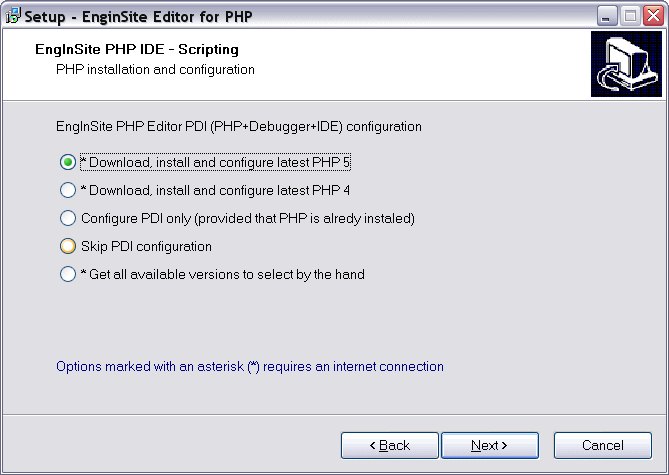
To increase flexibility, EngInSite Editor for PHP
Setup v. 3.5 and above does not contain PHP installation anymore but provides
additional options to download and install up-to-date 4.X and 5.X versions of
PHP scripting engine
The option "get all available versions" allows you detailed selection of php version

If you already have a PHP version installed and you
are pleased with it, select the "Configure PDI only" option to avoid PHP
download and installation.
Please select "Skip PDI configuration", if you still need PHP, but cannot be
connected to the Internet during the setup to receive additional installation
files. In this case, download one from latest PHP installation files from
http://luckasoft.com/download/php/
and run PHP setup as soon as EngInSite IDE is installed. This type of
installation does not practically differ from automatic loading and
configuration, with the exception that the installer will not launch the PHP
setup routine on completion, and you must do it by yourself.
The option "Configure PDI only" needs two additional steps to configure the IDE
for use with currently installed PHP version. Those steps don`t usually require
your intervention because the wizard will find the necessary information
automatically, if you just reinstall or update your existing IDE version.
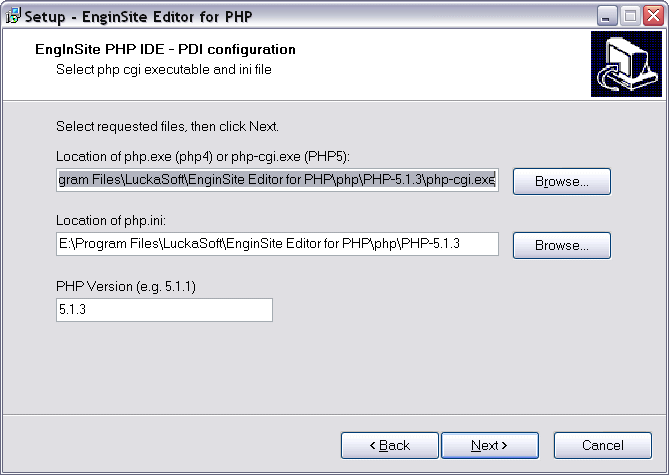
First, locate the php.ini and the PHP CGI executable
(php.exe for PHP 4 and php-cgi.exe for PHP 5 ). Also enter your installed PHP
version, for example 5.1.1 to help the setup wizard to detect the best debugger
dll. Click "next" to continue.
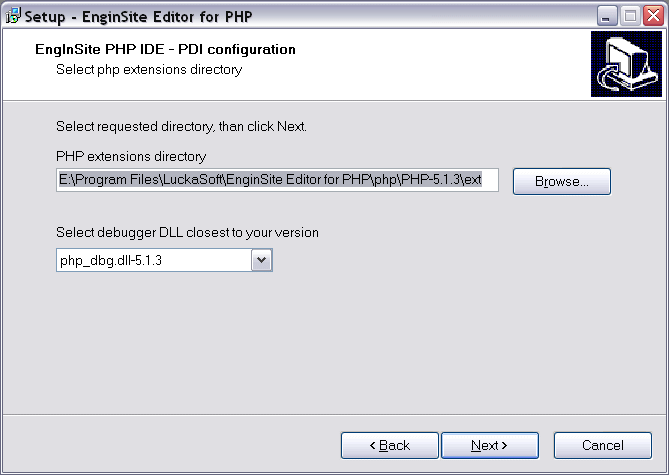
Second, select the extensions directory and debugger
dll closest to your installed PHP version and click "Next" to continue.
You don’t need additional configuration only if
you have used our PHP installation – via the IDE setup option or as an
additional download. Everything else needs execution of PHP Distribution Manager
to configure the IDE for use with currently installed PHP version.
Execute PHP Distribution Manager and follow wizard steps.
Just reinstall the IDE as usual (uninstalling of the previous version is not required, but preferred) and execute ReInstallPHPDebugger.bat from the IDE main directory to update debugger COM objects.
If all else failed, you can configure the IDE
manually. Note that [client.exe] is php-cgi.exe for PHP 5.X and php.exe for PHP
4.X., [php-dbg.dll-X.X.X] is the debugger coresponding to your PHP version, e.g.
php_dbg.dll-5.1.6 and [instdir] is your IDE installation directory, e.g.
C:\Programm Files\LuckaSoft\EnginSite Editor for PHP
1. Launch regedit and open the key
HKEY_CURRENT_USER\Software\LuckaSoft\PHPInfo
2. Set or create the following keys and string
values:
Client
= [client.exe]
DebuggerDLL = [instdir]\server\php_dbg.dll-X.X.X
ExtensionDir = path\to\you\php\installation\extensions (e.g.
c:\php411\extensions)
PHPVersion = X.X.X (e.g. 4.1.1)
WherePHP = path\to\you\php\installation (e.g.
c:\php411)
WherePHPIni = directory\where\your\php\ini (e.g. c:\php411)
3. Change to the key
HKEY_CURRENT_USER\Software\LuckaSoft\WebServer
4. Set or create the following keys and string
values:
PhpExe =
path\to\you\php\installation\[client.exe] (e.g.
c:\php411\php.exe)
PhpIni = directory\where\your\php\ini (e.g. c:\php411)
5. Close regedit.
6. Open php.ini from the location above e.g. c:\php411\php.ini)
7. Add or edit the value ExtensionsDir (e.g. extension_dir =
"c:\php411\extensions"
8. Insert into php.ini the following lines:
[Debugger]
debugger.enabled=on
debugger.profiler_enabled=on
debugger.hosts_allow=localhost 127.0.0.1
9. Add debugger dll to the extensions list (e.g.
extension=php_dbg.dll-4.4.1)
10. Save and close php.ini
11. Copy debugger dll from [instdir]\server to the extension directory
corresponding to the php.ini settings
Note:
If you have any zend_extension_ts or zend_extension lines in your php.ini, you
have to load the dbg differently. For example:
zend_extension_ts=c:php4php_dbg.dll-4.4.1
This line should appear before any other
zend_extension(s). If the debugger module was loaded using this way, please make
sure that the extension=php_dbg.dll-X.X.X line is removed or commented out.